strIDEterm MobileAbout 5 minutes
Set up your phone, step by step
From downloading the desktop app to a paired phone. Every click in order, with screenshots of the screens you will see.
-
Desktop app
Download the latest strIDEterm
Install the desktop app on the computer your phone will connect to. The desktop app is free. Already have it? Update to the latest version: this guide shows strIDEterm 3.4.2 and newer.
-
Desktop app
Open Remote Access
Start strIDEterm. In the left sidebar, find the Remote Access card and click Configure. The Remote Access window opens on its Mobile tab, with Overview, Phones and Account inside.
Another way in: open Settings with the gear icon at the top of the sidebar, choose Remote access and click Open next to Mobile.
-
Account and free trial
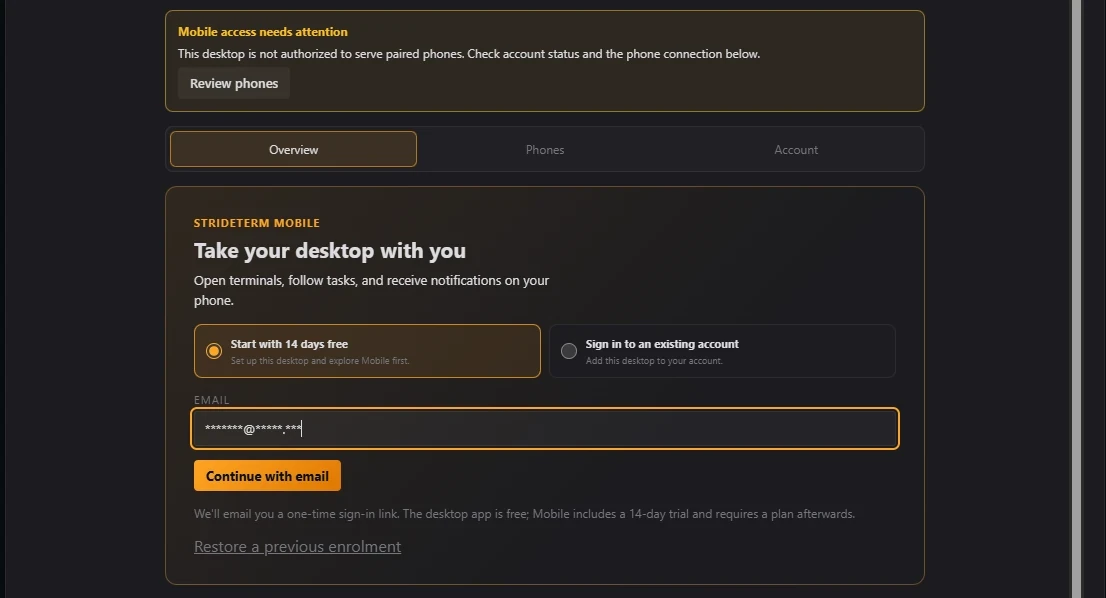
Start the free trial with your email
- Choose Start with 14 days free.
- Type your email address into the Email field.
- Click Continue with email.
The trial is 14 full days of the whole service and asks for no payment card, so nothing is charged when it ends. strIDEterm reminds you 3 days and 1 day before; whether to subscribe afterwards is up to you. See the prices
Already have an account, for example from another computer? Choose Sign in to an existing account instead. No password is needed: you sign in with a one-time link.
-
Account and free trial
Open the link from the email
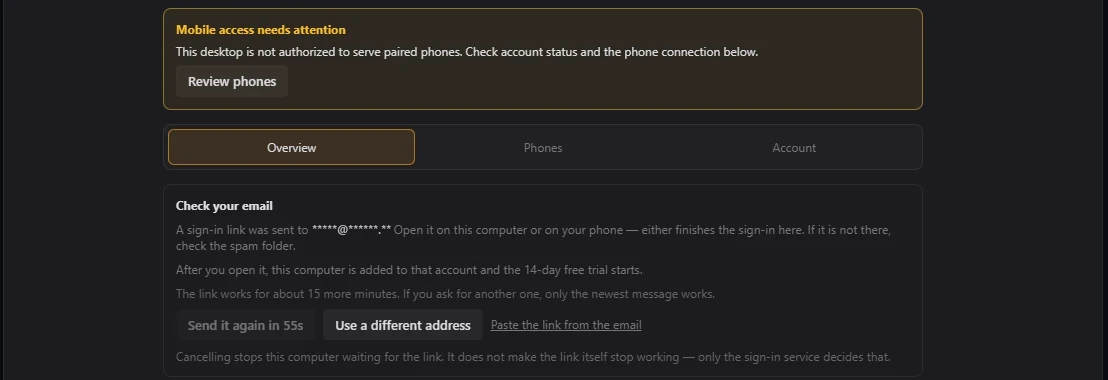
A sign-in link is on its way to your inbox. Open it on this computer or on your phone; either one finishes the sign-in here. The link works for about 15 minutes, and only the newest one works.
Nothing arrived? Check the spam folder, then use Send it again. You can also copy the link and use Paste the link from the email.
-
Account and free trial
Finish the sign-in on this computer
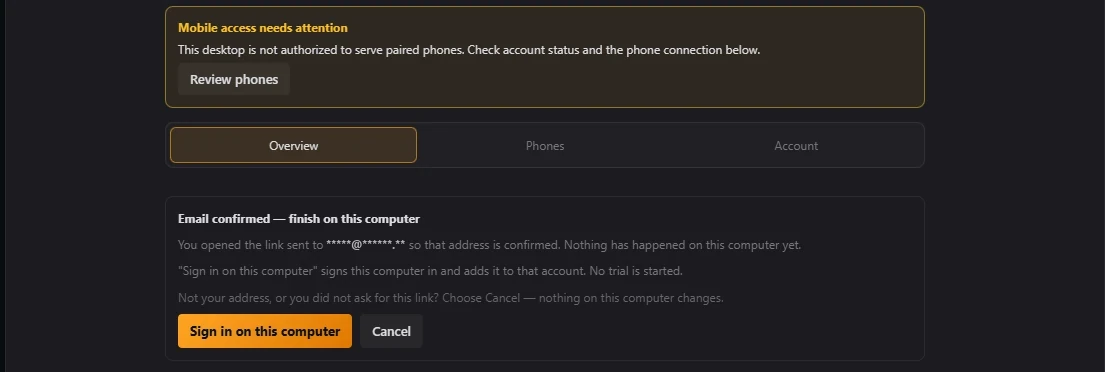
Once the link is opened, strIDEterm shows Email confirmed — finish on this computer. Click Sign in and start 14-day free trial. If you chose Sign in to an existing account instead, as in the picture, the button reads Sign in on this computer.
It takes a moment: the panel shows Finishing sign-in… and updates by itself when everything is ready.
-
App on your phone
Install strIDEterm Mobile on your phone
Install it now, before you connect the phone: the next step shows the QR code straight away, and the code is only valid for a short time.
Android · Google PlayThe Android app is on Google Play; an iOS app is not available yet.
Open the app’s page in Google Play on your phone and tap Install. Reading this on your computer? Scan the code with your phone’s camera instead.


Scan with your phone’s camera to open the app in Google Play. -
Pairing
Connect your first phone
Back on the desktop, the Overview now shows your Free trial and the days left in it. Click Connect first phone: it turns on phone pairing, switches to the Phones tab and shows a single-use QR code right away.
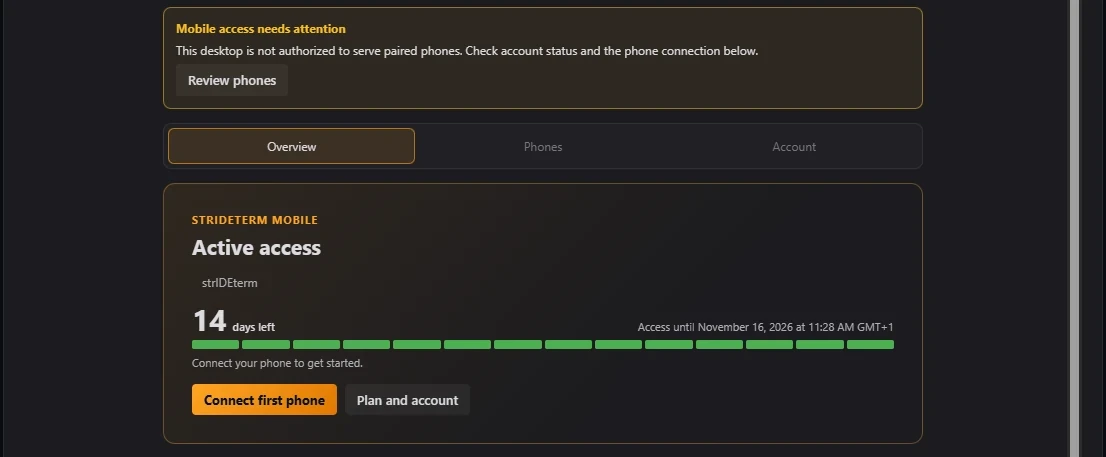
On a trial the card is headed Free trial; this picture comes from an account with another kind of access. Coming back later, or the code ran out? On the Phones tab, Pair a phone (Add phone once a phone is paired) creates a new code. A new phone gets all profiles and everything a paired phone can do; change that per phone afterwards with Edit access.
-
Pairing
Scan the QR code with your phone
After a moment the desktop shows a single-use QR code. On your phone:
- Open strIDEterm Mobile and tap Pair my desktop, then Scan the code.
- Point the camera at the QR code from about 20–40 cm.
- The phone asks Is this your desktop? Check the name and tap Yes, pair with it.
The code expires; the desktop shows how long it has left. If it runs out, click Generate new code and scan again.
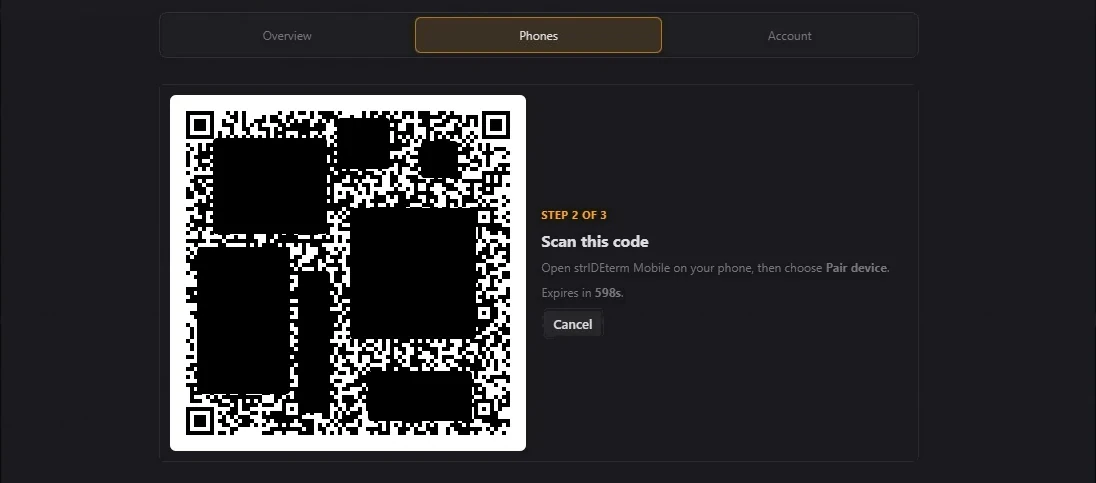
The code in this picture is blacked out. Yours will be complete. The panel says Pair device; in the phone app the button is Pair my desktop. -
Pairing
Type the code from your phone
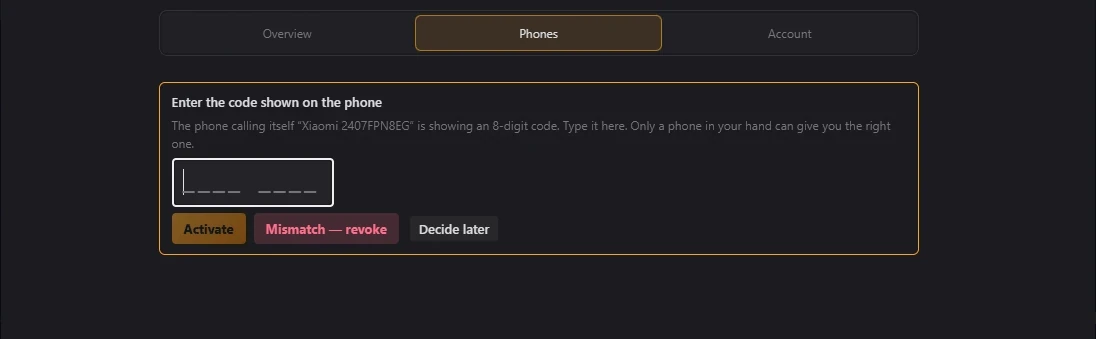
Your phone now shows an 8-digit code. The desktop does not show it, on purpose: only the phone in your hand has the right one. Type it into the field on the desktop and click Activate.
If the desktop refuses the code, someone else may have scanned your QR code. Click Mismatch — revoke and pair again with a new code.
-
Pairing
Done, your phone is paired
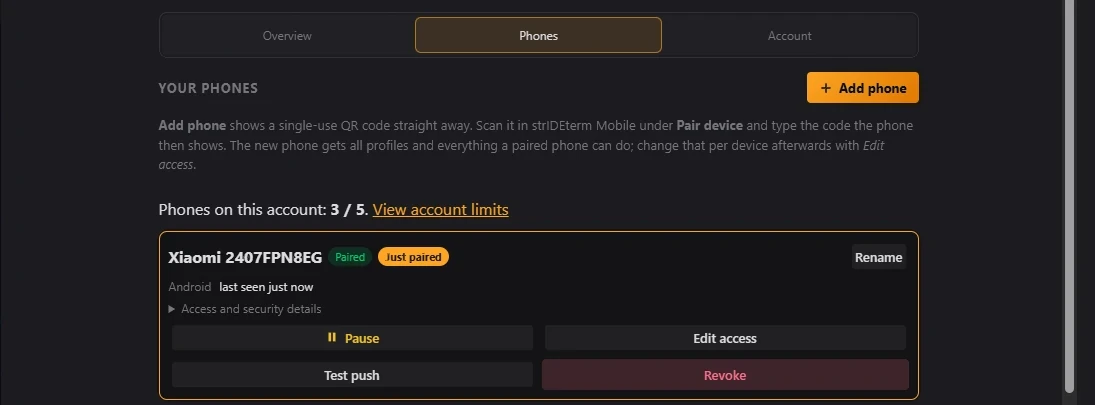
The phone appears under Your phones as Paired. Try Test push to check that notifications arrive. From here you can also pause the phone, change what it may do with Edit access, or Revoke it at any time.
Stuck somewhere? Write to [email protected].